Overview
Shelly Wave Long Range devices can only be added to Home Assistant through Z-Wave JS UI by using Smart Start.
Before adding the device, first check if your Z-Wave controller supports Z-Wave Long Range.
If the controller does not support Long Range, the device cannot be included as a Long Range device.
Before you start
Make sure that:
Home Assistant is running.
Z-Wave JS UI is installed and working.
Your Z-Wave controller supports Z-Wave Long Range.
You have the QR code or DSK code of the Shelly Wave Long Range device.
The device is not powered yet, or the battery protector is still installed.
Step 1: Check if the controller supports Long Range
Open Z-Wave JS UI and check the controller information.
Under the protocol information, a Long Range compatible controller should show the violet Z-Wave logo together with the standard blue Z-Wave logo.
The violet Z-Wave logo means that Long Range is supported.
If you only see the standard blue Z-Wave logo, the controller may not support Z-Wave Long Range.

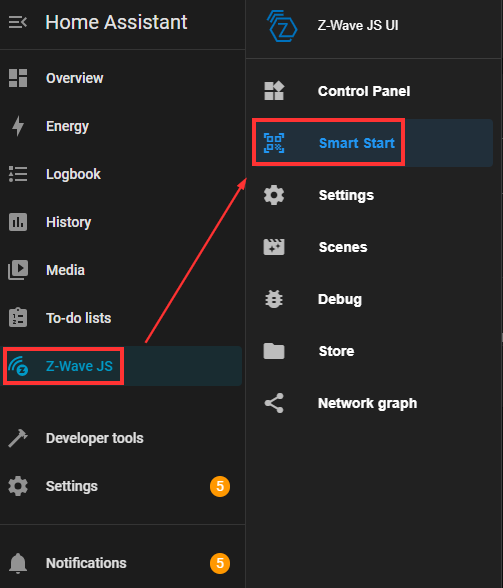
Step 2: Open Smart Start in Z-Wave JS UI
In Home Assistant:
Open Home Assistant.
Go to Z-Wave JS UI.
Open Smart Start.
Smart Start is used to prepare the device information in the Smart Start list even before the device it is powered for the first time.
Step 3: Add the device to Smart Start
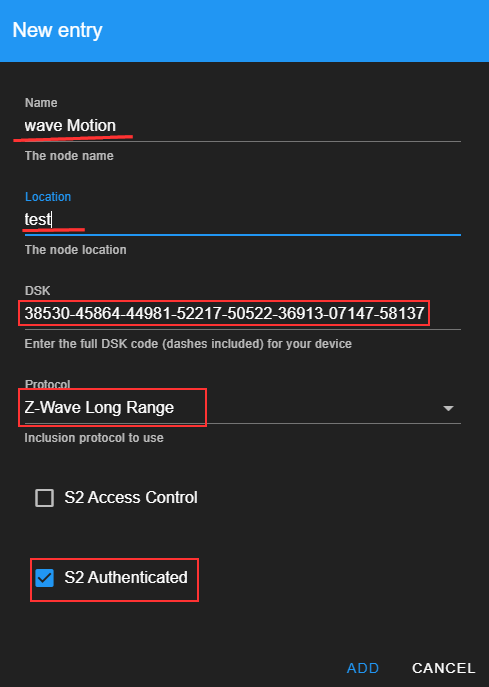
Add the Shelly Wave Long Range device by using one of these methods:
Scan the QR code from the device.
Enter the DSK code manually.
Enter the needed device details manually, if required.
Make sure the entered information is correct before saving the device.
Step 4: Select Z-Wave Long Range protocol
This step is important.
When adding the device to Smart Start, select the protocol Z-Wave Long Range *check the above picture.
If the standard Z-Wave protocol is selected, the device will be included as a normal Z-Wave device instead of a Long Range device.
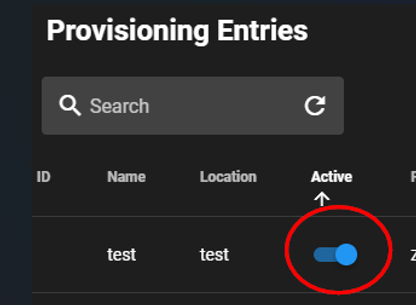
Step 5: Activate the Smart Start entry
After the device is added to the Smart Start list, activate it. It is better that the device is active in the Smart Start list before it is powered.
Step 6: Power the device
After the Smart Start entry is active, power the Shelly Wave device.
For battery-powered devices:
Remove the battery protector.
For mains-powered devices:
Connect power to the device.
After power is applied, the device should start the Smart Start inclusion automatically.
Step 7: If the device was already powered
If the device was already powered before the Smart Start entry was activated, Smart Start may not start immediately.
In case that this lasts for more than minute, the recommended step is to reset or power cycle the device in order that the device start sending the SmartStart inclusion command again.
This is also recommended if:
The battery protector was already removed.
The device was powered before it was added to Smart Start list.
The Smart Start inclusion does not start.
The device does not appear in Home Assistant.
Step 8: Verify Long Range inclusion
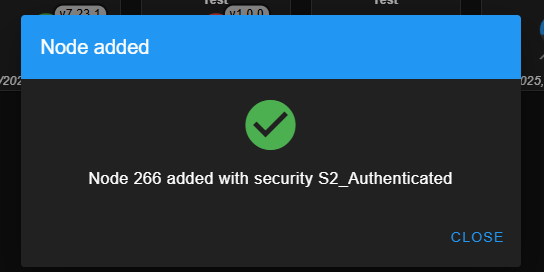
After the device is added, verify that it was included as a Long Range device.
In Z-Wave JS UI, the device should show the violet Z-Wave logo and the device ID is 256 or higher.
The violet logo and the ID number indicates that the device was added by using Z-Wave Long Range. If the device does not show the violet logo or the ID is lower than 256, the device have been added with standard Z-Wave instead.

Troubleshooting
If the device is not added as Long Range, check the following:
The controller supports Z-Wave Long Range.
The violet Z-Wave logo is shown for the controller.
The protocol was set to Z-Wave Long Range in Smart Start.
The Smart Start entry was activated.
The QR code or DSK code was entered correctly.
The device was reset if it was already powered before Smart Start was activated.
Summary
To add a Shelly Wave Long Range device to Home Assistant, use Z-Wave JS UI Smart Start.
First confirm that the controller supports Long Range. Then add the device with its QR code or DSK code to the SmartStart list, select Z-Wave Long Range as the protocol, activate the Smart Start entry, and power the device.
After inclusion, verify that the device shows the violet Z-Wave logo and the ID equal or higher than 256. This confirms that the device was added as a Long Range device.